How to Deploy Web42 on Your Website
Deploy Web42 with the embedded script
Once your [project](/blog/how-to-create-your-first-web42-project), [components](/blog/how-to-create-components-in-web42), and [tour](/blog/how-to-create-a-tour-that-converts-for-your-website) are ready, deployment is straightforward.
In most cases, you copy the embed snippet, place it on your site, and publish.
Web42 now supports a **floating widget embed** for production installs.
Choose your floating behavior
Floating is ideal for established websites where users already understand the layout and want help on demand.
You can choose:
Bottom-right position (default)
Bottom-left position
In most cases, you copy the embed snippet, place it on your site, and publish.
Step-by-step
Open
Settingsand go to the Embed tab.Why this helps: this is where Web42 gives you ready-to-use install code.
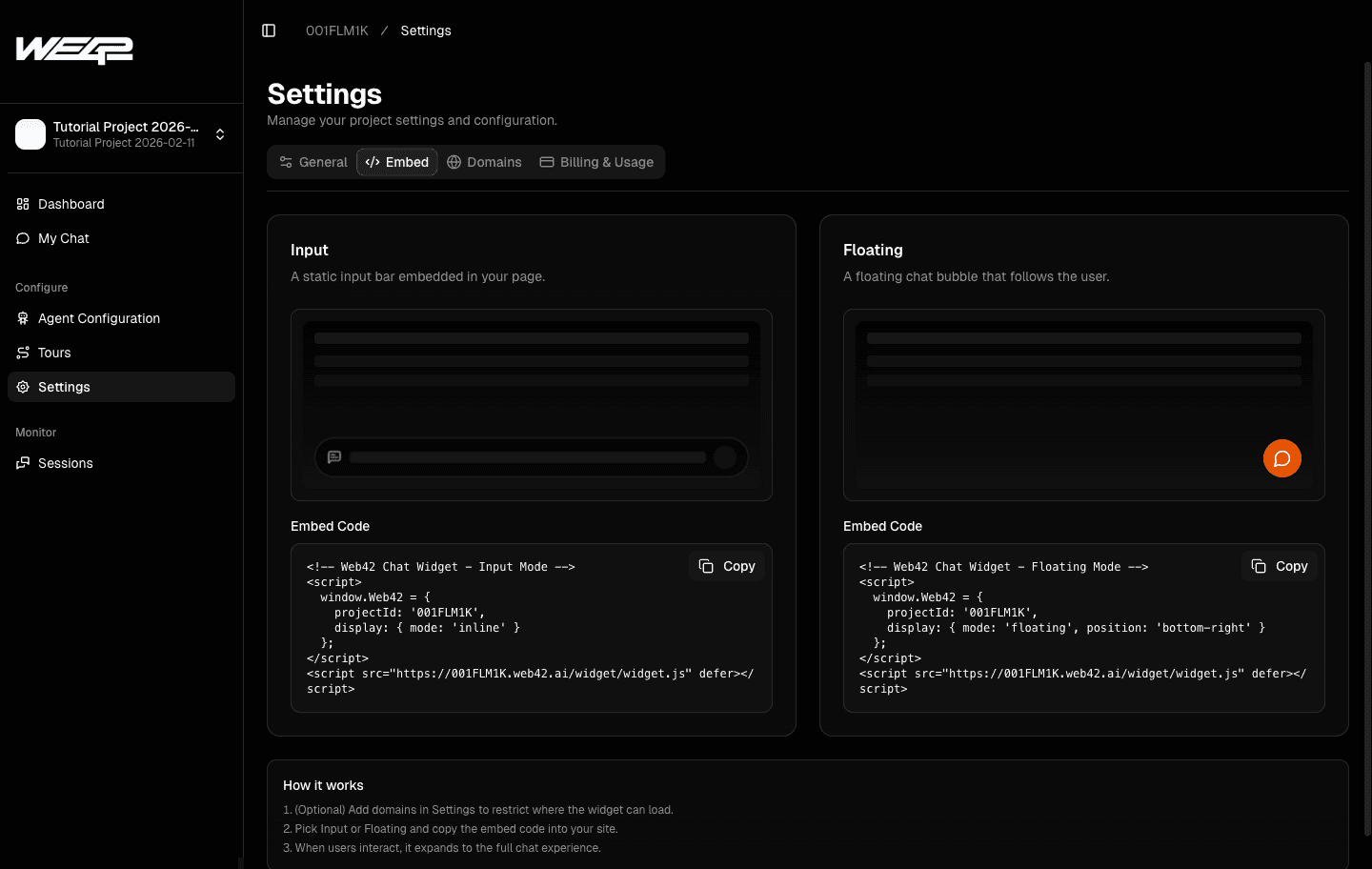
Copy the floating embed snippet.
Why this helps: deployment is mostly copy/paste once your project is configured.
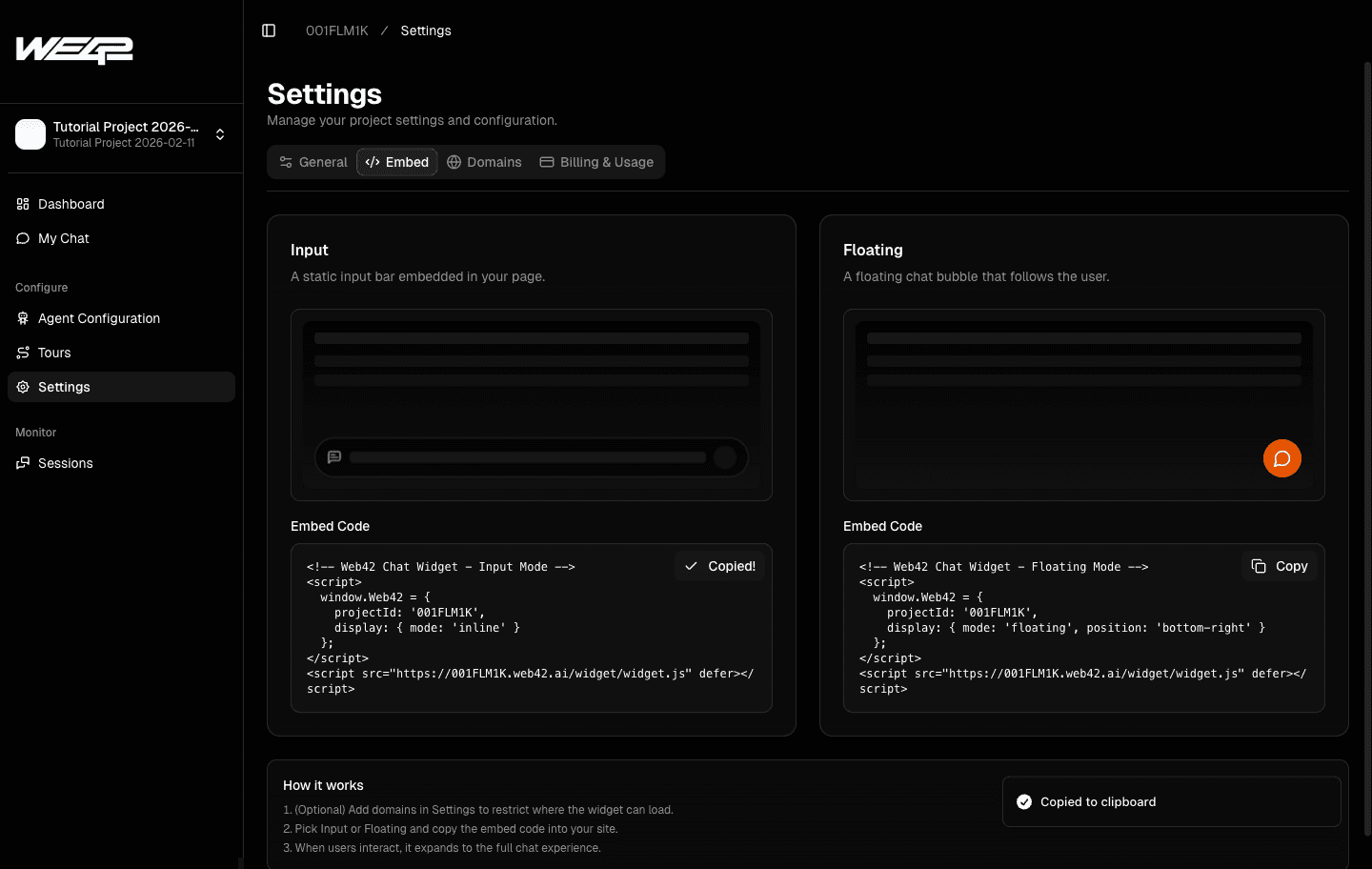
Choose the floating position and test on your site.
Depending on your site configuration
Why this helps: users get support exactly where they are reading.
Where to paste it on common no-code platforms
Framer: go to your site/project settings and paste in Custom Code (typically end of `</body>` for global loading).
Webflow: use Project Settings → Custom Code → Footer Code for all pages, or Page Settings → Before `</body>` for a single page.
Other builders (Wix, Squarespace, Shopify, WordPress): use the platform's global code injection/footer scripts area.
Manual / custom-coded site: add the snippet in your shared layout/template, right before `</body>` (for example your main `index.html`, base layout, or global template file).
For most launches, paste it once in site-wide footer/custom code so the assistant is available across your full website, then republish.
Enable domain whitelist before or during launch.
Why this helps: only approved origins can access your agent, which protects production usage.
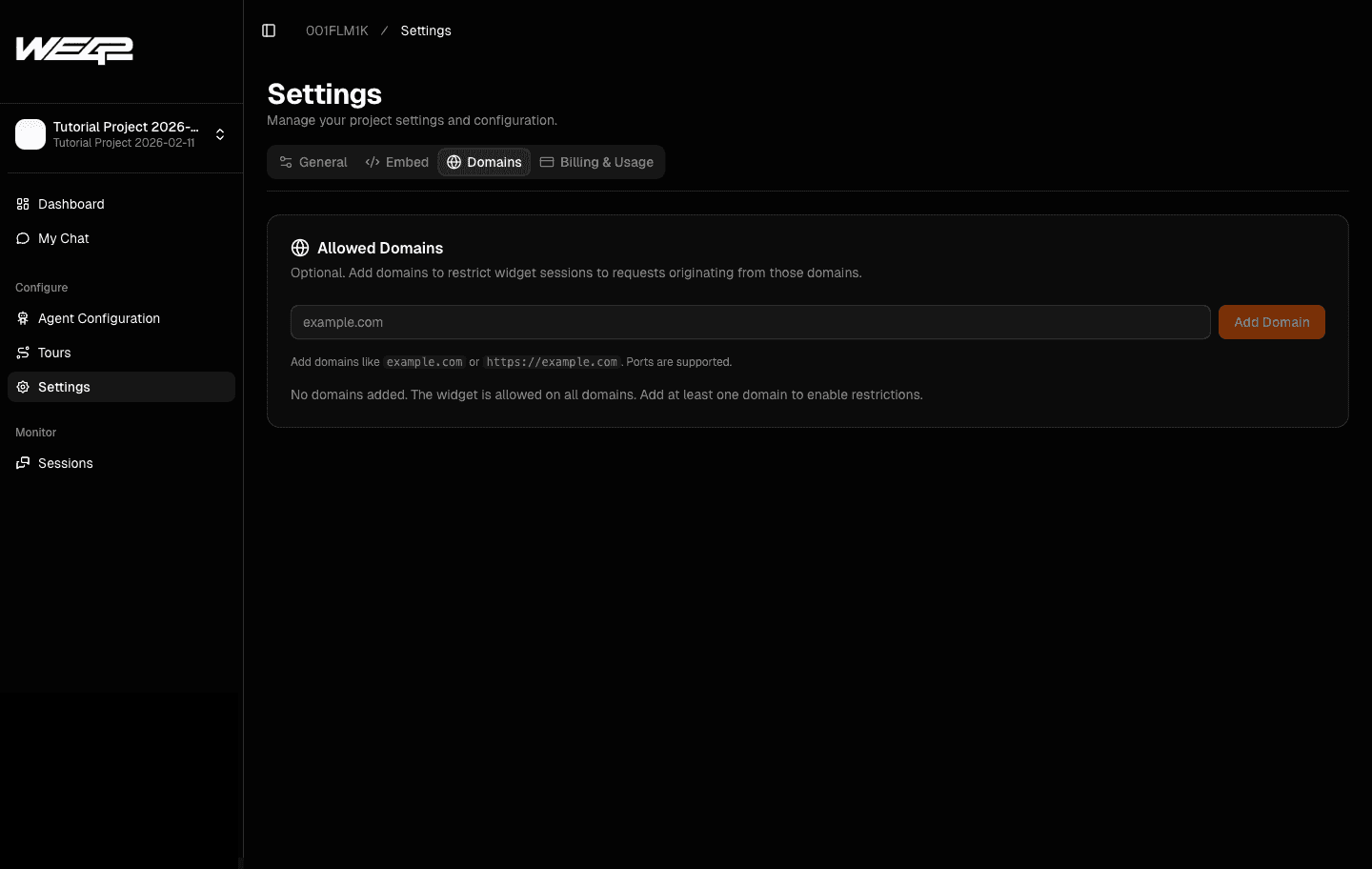
After deployment
Review usage in your dashboard:
Metrics overview for adoption and engagement
Sessions tab to inspect real user interactions
And that's it. That's how you enable Web42 in your website,